
Kids Space, an Educational App for Children from Google
Google Kids Space, Digital Education for Today’s Children – So many technology applications for children are now developing rapidly and providing positive benefits in children’s education.
Therefore, technology also needs to be introduced to children, one of which is using Google Kids Space.
Get to Know Google’s Digital-Based Educational Application for Children
Google Kids Space is a special app for children available on certain Android tablets that has been reviewed by education and children’s media experts.
Google Kids Space can be accessed via Android tablets to help children create, discover, and grow with technology. This feature for Android tablets provides a collection of high-quality, child-friendly content with parental controls to set limits.
Parents are naturally concerned about the abundance of content available today, as children may be exposed to adult content that is not suitable for them. Google Kids Space recommends apps, books, and videos based on children’s age and interests.
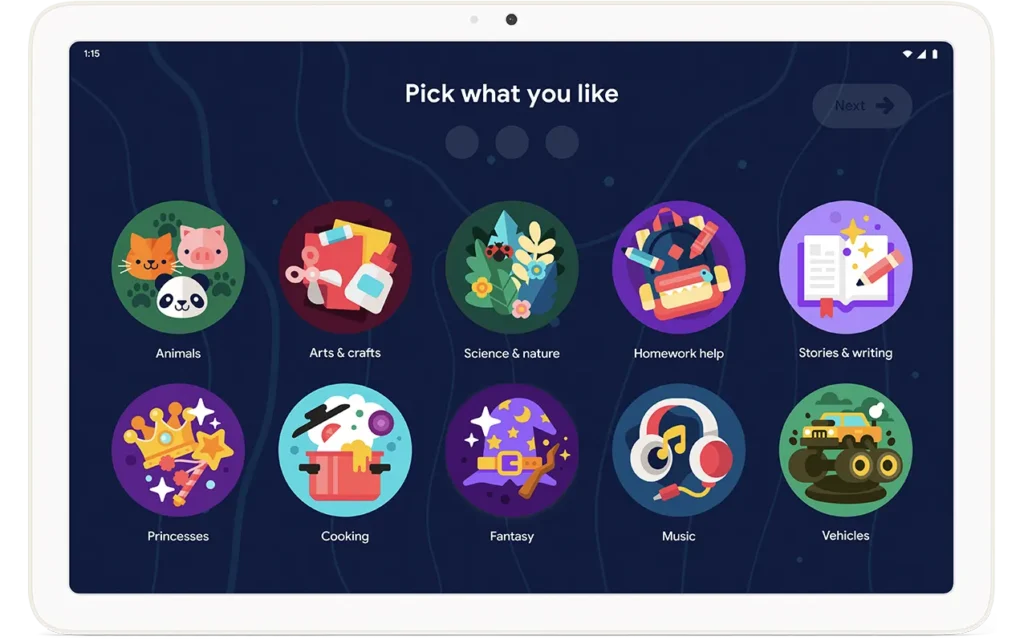
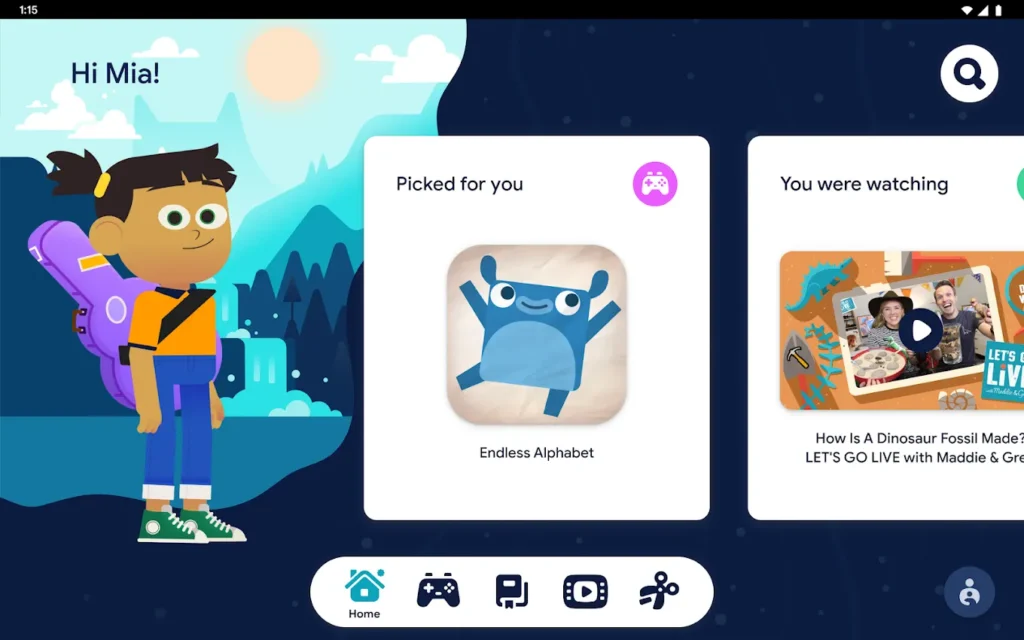
Children can also customize their experience by creating their own characters in Google Kids Space. Children under the age of 9 can create their own avatars and receive content recommendations based on their interests.
Setting Up a Google Kids Space Account
The Google Kids Space app offers many benefits to support children’s positive development.
Google Kids Space can foster children’s creativity and curiosity. This is relevant for today’s young generation who are familiar with gadgets. Not only does it stimulate creativity, Google has designed this app specifically for children with interesting and interactive content.
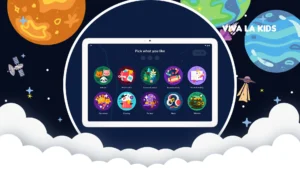
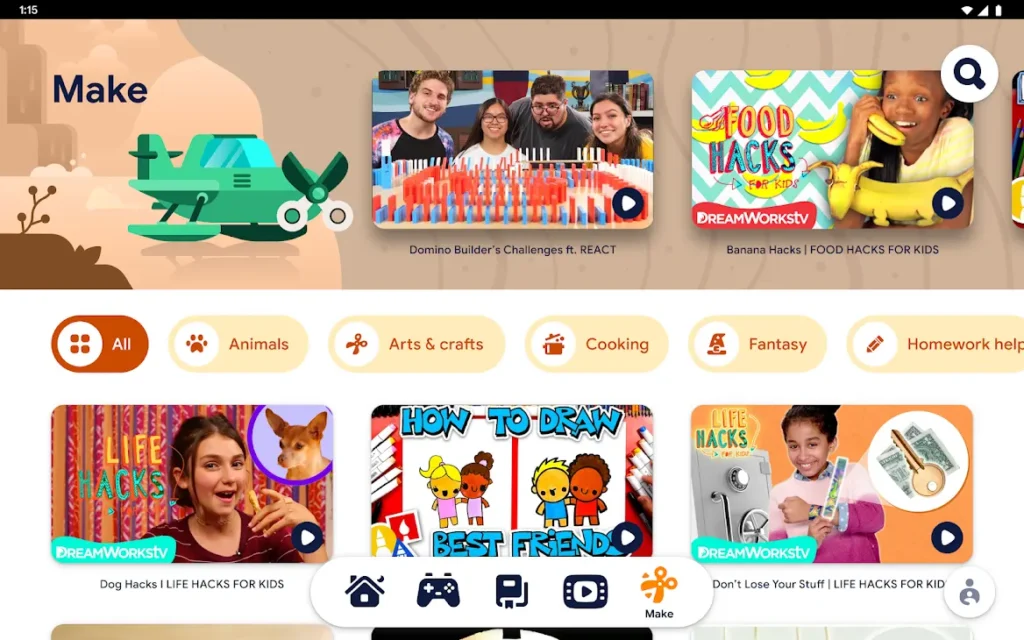
There are five options in Google Kids Space that contain different content, namely: Home, Games, Reading, Creation, and Watch. Google Kids Space accounts only work according to the minimum age requirements for children. Once a child reaches the age of 13, they can no longer use their Google Kids Space account.
Tutorial on Setting Up a Google Kids Space Account
To set up a Google Kids Space account, you need a Google account for your child and manage it with Family Link.
Each child user can use their own separate space in Google Kids Space so that multiple children can share the same tablet.
If your device already has Kids Space, follow these steps to get started.
However, if Kids Space is not yet available on your device, please download and install Google Kids Space from Google Play first.
- Check if your device is compatible with Google Kids Space.
- Don’t forget to connect your tablet to the internet or Wi-Fi, then turn on the tablet.
- When Google asks who will be using this account, click My child.
- If you have already set up your tablet, click Google Kids Space.
- Log in to your child’s Google account if you already have one, or follow the login instructions to create a new Google account for your child.
- Click Set Up, and you can edit your child’s Google Kids Space account settings.
- Choose whether you allow your child to install apps recommended in Google Kids Space without your prior approval.
- You can also choose whether to hide app recommendations that contain ads.
- Click Agree, and review the settings for apps already installed on the device.
- Done. Invite your child to create a character and choose according to their interests.
Tutorial on Activating a Google Kids Space Account
The Google Kids Space technology application can help children learn while playing through digital art, logic games, music, and more.
If you have previously logged into your Google Kids Space account and do not want to save it, make sure to uncheck ‘Use Previous Settings’.
To use a Google Kids Space account, follow these steps:
- From the home screen, click Google Kids Space, then follow the on-screen instructions.
- From Settings, open Settings, then tap Digital Wellbeing and Parental Controls.
- Tap Google Kids Space, then follow the instructions.
- To deactivate your Kids Space account, click Sign out of Kids Space, then tap Deactivate.
- If your Kids account remains inactive for more than 30 days, you will need to reset it.
Technology plays an important role in every aspect of daily life, and its benefits are widely felt.
Read Also : Here it is! Free Technology Learning Resources for Kids
Today’s generation of children are familiar with the presence of technology in their daily lives. It is not uncommon for parents to share their devices with their children.